
Introduction
React's declarative model is a productivity superpower. You describe what the UI should look like, and React figures out how to make it happen. But this abstraction has a cost: React does a lot of work behind the scenes, and if you don't understand that work, you can accidentally write code that makes React do far more than necessary.
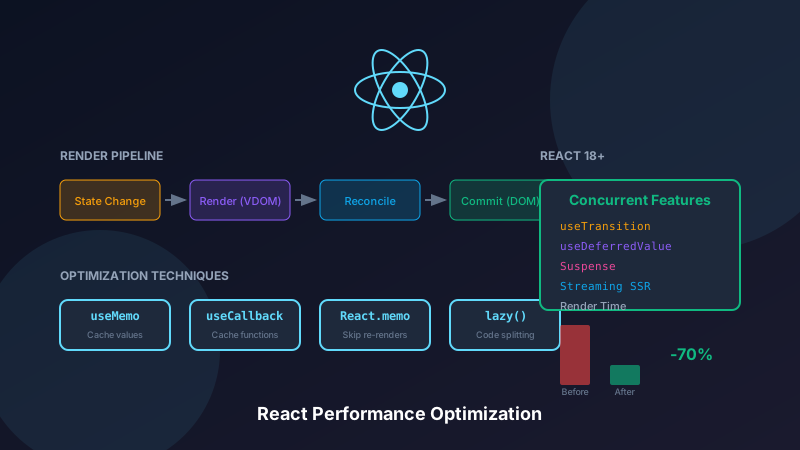
This deep dive covers React's rendering pipeline from first principles. We'll explore the Virtual DOM and reconciliation algorithm, understand exactly when and why components re-render, master React 18's concurrent features, and preview the upcoming React Compiler. By the end, you'll have the mental model to diagnose and fix any React performance issue.
Performance in Context
Before we dive in, a word of caution: premature optimization is the root of all evil. Most React apps are fast enough without any optimization. The patterns in this article should be applied when:
- You have measured a performance problem (not guessed)
- The problem affects user experience (not just benchmarks)
- You've identified the specific cause (not just "it feels slow")
With that said, understanding these concepts is valuable even if you never need to optimize. It makes you a better React developer and helps you write performant code by default.
Understanding React's Rendering Pipeline
To optimize React, you need to understand what React actually does when your component "renders." Spoiler: it's more nuanced than you might think.
Rendering vs. Committing
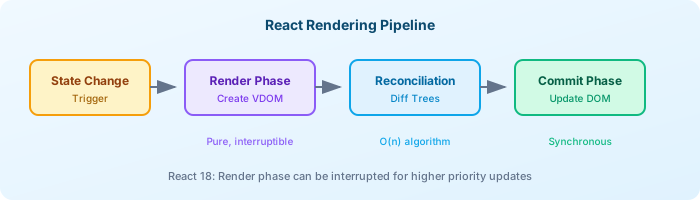
A common misconception is that "rendering" means "updating the DOM." In React, these are two distinct phases:
Render Phase: React calls your component functions to compute what the UI should look like. This produces a Virtual DOM tree (React elements). This phase is pure—no side effects, no DOM mutations.
Commit Phase: React compares the new Virtual DOM with the previous one (reconciliation), computes the minimal set of changes, and applies them to the real DOM.
This distinction matters because the Render phase can be interrupted and restarted (in Concurrent React), but the Commit phase is synchronous and cannot be interrupted.
The Virtual DOM and Reconciliation
React maintains a lightweight JavaScript representation of the DOM called the Virtual DOM. It's essentially a tree of JavaScript objects describing the UI structure:
// What JSX compiles to
<div className="card">
  <h1>Hello</h1>
</div>

// Becomes this object (simplified)
{
  type: 'div',
  props: {
    className: 'card',
    children: {
      type: 'h1',
      props: { children: 'Hello' }
    }
  }
}typescript
When state changes, React:
- Calls your component functions to create a new Virtual DOM tree
- Compares it with the previous tree (this is "reconciliation" or "diffing")
- Computes the minimal set of DOM operations needed
- Applies those changes to the real DOM
The Reconciliation Algorithm
Comparing two arbitrary trees has O(n³) complexity—unusable for any real application. React uses clever heuristics to achieve O(n) complexity:
Heuristic 1: Elements of different types produce different trees. If you change a <div> to a <span>, React won't try to patch it—it destroys the entire subtree and rebuilds.
Heuristic 2: The key prop hints which elements are stable across renders. This is crucial for lists.
Heuristic 3: Components of the same type are assumed to produce similar trees. React reuses the instance and updates props.
Let's see these in action:
// 1. Different element types = replace entire subtree
<div>                  <span>
  <Counter />    →       <Counter />  // Counter is remounted!
</div>                 </span>

// 2. Same element type = update props, keep instance
<div className="a">    <div className="b">
  <Counter />     →      <Counter />  // Same Counter instance
</div>                 </div>

// 3. Keys optimize list reconciliation
// Without keys: O(n) operations for list changes
// With keys: O(1) for moves, insertions, deletions

// BAD: Using index as key
{items.map((item, index) => (
  <Item key={index} {...item} />  // Causes unnecessary re-renders
))}

// GOOD: Using stable unique ID
{items.map((item) => (
  <Item key={item.id} {...item} />  // Efficient updates
))}typescript
The Key Prop Deep Dive
The key prop is one of the most misunderstood React concepts. It's not just for suppressing warnings—it fundamentally changes how React reconciles lists.
Without keys, React matches elements by position. If you insert an item at the beginning of a list, React thinks every item changed (because they all shifted position) and re-renders everything.
With keys, React matches elements by key. Inserting an item at the beginning means React knows existing items just moved—it reuses their DOM nodes and state.
Critical Rule: Keys must be stable, unique, and predictable. Using array index as key defeats the purpose because indices change when items are added or removed.
Preventing Unnecessary Re-renders
Now that we understand when React renders, let's explore how to prevent unnecessary renders. But first, let's be precise about what "unnecessary" means.
Understanding When Components Re-render
A component re-renders when:
- Its state changes (via setState, useState setter, etc.)
- Its parent re-renders (unless the component is memoized)
- A context it consumes changes (any component using useContext re-renders)
Notice what's NOT on this list: props changes. A component re-renders when its parent re-renders, regardless of whether its props actually changed. This is a common misconception.
Why does React do this? Because checking whether props changed (deep equality) can be expensive and often unnecessary. React optimizes for the common case where props do change when the parent re-renders.
// This child re-renders every time parent renders!
function Parent() {
  const [count, setCount] = useState(0);

  return (
    <div>
      <button onClick={() => setCount(c => c + 1)}>
        Count: {count}
      </button>
      <ExpensiveChild />  {/* Re-renders on every click! */}
    </div>
  );
}typescript
The Real Cost of Re-renders
Before you start memoizing everything, understand what a re-render actually costs:
- Function execution: React calls your component function
- Element creation: JSX creates React element objects
- Reconciliation: React compares old and new elements
- DOM updates: Only if the Virtual DOM changed
Steps 1-3 are usually cheap. Step 4 is expensive, but it only happens when the Virtual DOM actually changes. A component can re-render 100 times without touching the DOM if its output doesn't change.
The question isn't "is this component re-rendering?" but "is this re-render causing expensive work?" That expensive work might be:
- Complex calculations during render
- Large lists being recreated
- Heavy child components being re-rendered
- Actual DOM updates
React.memo - The Memoization HOC
React.memo is a higher-order component that memoizes your component. It performs a shallow comparison of props and skips re-rendering if props haven't changed.
// Basic memoization
const ExpensiveChild = memo(function ExpensiveChild() {
  console.log('ExpensiveChild rendered');
  return <div>I am expensive</div>;
});

// Custom comparison function
const UserCard = memo(
  function UserCard({ user, onSelect }: Props) {
    return (
      <div onClick={() => onSelect(user.id)}>
        {user.name}
      </div>
    );
  },
  (prevProps, nextProps) => {
    // Return true if props are equal (skip re-render)
    return prevProps.user.id === nextProps.user.id &&
           prevProps.onSelect === nextProps.onSelect;
  }
);typescript
Understanding Shallow Comparison
React.memo uses shallow comparison by default. This means:
- Primitives (strings, numbers, booleans) are compared by value
- Objects and arrays are compared by reference
This is why object and function props often break memoization—they're created fresh on each render, so their reference changes even if their content is identical.
useMemo and useCallback
These hooks help maintain stable references across renders:
- useMemo: Memoizes a computed value. Returns the same value if dependencies haven't changed.
- useCallback: Memoizes a function. Returns the same function reference if dependencies haven't changed.
They're essentially the same thing—useCallback(fn, deps) is equivalent to useMemo(() => fn, deps).
function SearchResults({ query, filters }: Props) {
  // ❌ BAD: New array created every render
  const filteredResults = data.filter(item =>
    item.name.includes(query) &&
    filters.every(f => item.tags.includes(f))
  );

  // ✅ GOOD: Only recompute when dependencies change
  const filteredResults = useMemo(() =>
    data.filter(item =>
      item.name.includes(query) &&
      filters.every(f => item.tags.includes(f))
    ),
    [data, query, filters]
  );

  // ❌ BAD: New function created every render
  const handleClick = (id: string) => {
    onSelect(id);
  };

  // ✅ GOOD: Stable function reference
  const handleClick = useCallback((id: string) => {
    onSelect(id);
  }, [onSelect]);

  return filteredResults.map(item => (
    <Item
      key={item.id}
      item={item}
      onClick={handleClick}  // Stable reference
    />
  ));
}typescript
The Memoization Decision Framework
When deciding whether to memoize, ask these questions:
-
Is this component expensive to render? If it's a simple component, memoization overhead might exceed the render cost.
-
Does this component re-render often with the same props? If props usually change, memoization just adds comparison overhead.
-
Is the parent's render expensive? Sometimes it's better to optimize the parent than memoize the child.
-
Are the props stable? If props are recreated every render (objects, arrays, functions), you need useMemo/useCallback in the parent too.
When NOT to Memoize
Memoization isn't free. Every useMemo and useCallback has overhead: storing the memoized value, comparing dependencies, and the complexity it adds to your code. Here are anti-patterns:
// ❌ Over-optimization: Simple calculations
const doubled = useMemo(() => count * 2, [count]);  // Overkill

// ❌ Over-optimization: Simple components
const SimpleText = memo(({ text }: { text: string }) => (
  <span>{text}</span>  // Comparison cost > render cost
));

// ❌ Unstable dependencies defeat memoization
function Parent() {
  // This object is new every render!
  const config = { theme: 'dark', size: 'large' };

  return <Child config={config} />;  // memo is useless
}

// ✅ Fix: Memoize the object
function Parent() {
  const config = useMemo(() => ({
    theme: 'dark',
    size: 'large'
  }), []);

  return <Child config={config} />;
}typescript
React 18 Concurrent Features
React 18 introduced Concurrent React—a fundamental change to how React schedules and renders updates. The key insight is that not all updates are equally urgent. Typing in an input should feel instant, but updating a complex dashboard can happen in the background.
Concurrent React enables React to:
- Interrupt rendering to handle more urgent updates
- Keep the UI responsive during expensive renders
- Prepare new UI in the background before showing it
Let's explore the specific features.
Automatic Batching
Batching means combining multiple state updates into a single re-render. React has always batched updates in event handlers, but React 18 extends this to all contexts:
// React 17: Multiple re-renders
async function handleClick() {
  const data = await fetchData();
  setLoading(false);  // Re-render 1
  setData(data);      // Re-render 2
  setError(null);     // Re-render 3
}

// React 18: Single re-render (automatic batching)
async function handleClick() {
  const data = await fetchData();
  setLoading(false);  // Batched
  setData(data);      // Batched
  setError(null);     // Batched → Single re-render
}

// Opt-out if needed
import { flushSync } from 'react-dom';

function handleClick() {
  flushSync(() => {
    setCount(c => c + 1);  // Immediately re-renders
  });
  // DOM is updated here
  console.log(document.getElementById('count').textContent);
}typescript
useTransition - Non-blocking Updates
useTransition is the most important concurrent feature for application developers. It lets you mark certain state updates as "transitions"—updates that can be interrupted if something more urgent happens.
The classic use case is search: when the user types, updating the input is urgent (they need to see what they typed). But filtering a large list can happen in the background. If the user types another character before filtering completes, we should abandon the old filter and start a new one.
function SearchPage() {
  const [query, setQuery] = useState('');
  const [results, setResults] = useState([]);
  const [isPending, startTransition] = useTransition();

  function handleChange(e: ChangeEvent<HTMLInputElement>) {
    // Urgent: Update input immediately
    setQuery(e.target.value);

    // Non-urgent: Can be interrupted
    startTransition(() => {
      // This won't block typing even with 10,000 results
      const filtered = filterLargeDataset(e.target.value);
      setResults(filtered);
    });
  }

  return (
    <div>
      <input value={query} onChange={handleChange} />
      {isPending && <Spinner />}
      <ResultsList results={results} />
    </div>
  );
}typescript
useTransition vs useDeferredValue
Both hooks defer updates, but they serve different purposes:
- useTransition: You control the state setter. Wrap the non-urgent setState call.
- useDeferredValue: You receive a value (e.g., from props). Defer its updates.
Use useTransition when you own the state. Use useDeferredValue when you receive the value from elsewhere.
useDeferredValue - Deferring Re-renders
useDeferredValue accepts a value and returns a "deferred" version that lags behind during rapid updates. This is perfect when you receive a value from outside (props) and can't control when it updates.
function SearchResults({ query }: { query: string }) {
  // deferredQuery lags behind query during rapid updates
  const deferredQuery = useDeferredValue(query);

  // Show stale content while computing new results
  const isStale = query !== deferredQuery;

  // This expensive computation uses the deferred value
  const results = useMemo(
    () => filterLargeDataset(deferredQuery),
    [deferredQuery]
  );

  return (
    <div style={{ opacity: isStale ? 0.7 : 1 }}>
      {results.map(item => <Item key={item.id} item={item} />)}
    </div>
  );
}typescript
Suspense for Data Fetching
// Modern data fetching with Suspense
function ProfilePage({ userId }: { userId: string }) {
  return (
    <Suspense fallback={<ProfileSkeleton />}>
      <ProfileDetails userId={userId} />
      <Suspense fallback={<PostsSkeleton />}>
        <ProfilePosts userId={userId} />
      </Suspense>
    </Suspense>
  );
}

// Using React Query with Suspense
function ProfileDetails({ userId }: { userId: string }) {
  const { data } = useSuspenseQuery({
    queryKey: ['user', userId],
    queryFn: () => fetchUser(userId),
  });

  return <div>{data.name}</div>;
}

// Streaming SSR with Suspense
// server.tsx
import { renderToPipeableStream } from 'react-dom/server';

app.get('/', (req, res) => {
  const { pipe } = renderToPipeableStream(<App />, {
    bootstrapScripts: ['/main.js'],
    onShellReady() {
      res.setHeader('content-type', 'text/html');
      pipe(res);  // Stream HTML as components resolve
    },
  });
});typescript
Code Splitting and Lazy Loading
Route-based Splitting
import { lazy, Suspense } from 'react';
import { Routes, Route } from 'react-router-dom';

// Lazy load route components
const Dashboard = lazy(() => import('./pages/Dashboard'));
const Settings = lazy(() => import('./pages/Settings'));
const Analytics = lazy(() =>
  import('./pages/Analytics').then(module => ({
    default: module.AnalyticsPage  // Named export
  }))
);

function App() {
  return (
    <Suspense fallback={<PageLoader />}>
      <Routes>
        <Route path="/dashboard" element={<Dashboard />} />
        <Route path="/settings" element={<Settings />} />
        <Route path="/analytics" element={<Analytics />} />
      </Routes>
    </Suspense>
  );
}typescript
Component-level Splitting
// Lazy load heavy components
const HeavyChart = lazy(() => import('./components/HeavyChart'));
const RichTextEditor = lazy(() => import('./components/RichTextEditor'));

function Dashboard() {
  const [showChart, setShowChart] = useState(false);

  return (
    <div>
      <button onClick={() => setShowChart(true)}>
        Show Analytics
      </button>

      {showChart && (
        <Suspense fallback={<ChartSkeleton />}>
          <HeavyChart data={analyticsData} />
        </Suspense>
      )}
    </div>
  );
}

// Preload on hover for better UX
function NavLink({ to, children }: Props) {
  const handleMouseEnter = () => {
    // Preload the route component
    const route = routes.find(r => r.path === to);
    route?.component.preload?.();
  };

  return (
    <Link to={to} onMouseEnter={handleMouseEnter}>
      {children}
    </Link>
  );
}typescript
Virtualization for Large Lists
import { useVirtualizer } from '@tanstack/react-virtual';

function VirtualizedList({ items }: { items: Item[] }) {
  const parentRef = useRef<HTMLDivElement>(null);

  const virtualizer = useVirtualizer({
    count: items.length,
    getScrollElement: () => parentRef.current,
    estimateSize: () => 50,  // Estimated row height
    overscan: 5,  // Render 5 extra items outside viewport
  });

  return (
    <div
      ref={parentRef}
      style={{ height: '400px', overflow: 'auto' }}
    >
      <div
        style={{
          height: `${virtualizer.getTotalSize()}px`,
          position: 'relative',
        }}
      >
        {virtualizer.getVirtualItems().map((virtualItem) => (
          <div
            key={virtualItem.key}
            style={{
              position: 'absolute',
              top: 0,
              left: 0,
              width: '100%',
              height: `${virtualItem.size}px`,
              transform: `translateY(${virtualItem.start}px)`,
            }}
          >
            <ItemRow item={items[virtualItem.index]} />
          </div>
        ))}
      </div>
    </div>
  );
}typescript
The React Compiler (React 19+)
The React Compiler automatically applies optimizations, reducing the need for manual memoization.
// Before: Manual memoization required
function TodoList({ todos, filter }: Props) {
  const filteredTodos = useMemo(
    () => todos.filter(todo => matchesFilter(todo, filter)),
    [todos, filter]
  );

  const handleComplete = useCallback(
    (id: string) => completeTodo(id),
    [completeTodo]
  );

  return filteredTodos.map(todo => (
    <TodoItem
      key={todo.id}
      todo={todo}
      onComplete={handleComplete}
    />
  ));
}

// After: React Compiler handles it automatically
function TodoList({ todos, filter }: Props) {
  // No useMemo needed - compiler detects and optimizes
  const filteredTodos = todos.filter(todo =>
    matchesFilter(todo, filter)
  );

  // No useCallback needed - compiler maintains reference stability
  const handleComplete = (id: string) => completeTodo(id);

  return filteredTodos.map(todo => (
    <TodoItem
      key={todo.id}
      todo={todo}
      onComplete={handleComplete}
    />
  ));
}

// Enable React Compiler in next.config.js (Next.js 15+)
module.exports = {
  experimental: {
    reactCompiler: true,
  },
};typescript
Performance Profiling
React DevTools Profiler
// Wrap components to measure render time
import { Profiler } from 'react';

function onRenderCallback(
  id: string,
  phase: 'mount' | 'update',
  actualDuration: number,
  baseDuration: number,
  startTime: number,
  commitTime: number,
) {
  console.log({
    id,
    phase,
    actualDuration,  // Time spent rendering
    baseDuration,    // Estimated time without memoization
  });
}

function App() {
  return (
    <Profiler id="App" onRender={onRenderCallback}>
      <Dashboard />
    </Profiler>
  );
}typescript
Custom Performance Monitoring
// Hook to detect slow renders
function useRenderTime(componentName: string, threshold = 16) {
  const renderStart = useRef(performance.now());

  useEffect(() => {
    const renderTime = performance.now() - renderStart.current;

    if (renderTime > threshold) {
      console.warn(
        `Slow render: ${componentName} took ${renderTime.toFixed(2)}ms`
      );

      // Report to monitoring service
      analytics.track('slow_render', {
        component: componentName,
        duration: renderTime,
      });
    }
  });

  renderStart.current = performance.now();
}

function ExpensiveComponent() {
  useRenderTime('ExpensiveComponent');
  // ... component logic
}typescript
Conclusion
React performance optimization is a deep topic, but it boils down to a few key principles:
The Mental Model
-
Rendering isn't the problem—unnecessary work is. A component can re-render thousands of times without performance issues if each render is fast and doesn't cause DOM updates.
-
Measure before optimizing. Use React DevTools Profiler to identify actual bottlenecks. Don't guess—you'll often be wrong.
-
Optimize at the right level. Sometimes the fix is restructuring components, not adding memoization. State colocation (keeping state close to where it's used) often eliminates entire classes of re-render issues.
The Optimization Toolkit
-
React.memo: Prevent re-renders when props haven't changed. Use for expensive components with stable props.
-
useMemo/useCallback: Maintain stable references for objects and functions passed to memoized children.
-
useTransition/useDeferredValue: Keep the UI responsive during expensive updates. Essential for search, filtering, and data-heavy UIs.
-
Code Splitting: Don't load code the user doesn't need yet. Split by route and by component.
-
Virtualization: For lists over ~100 items, render only what's visible.
The Future: React Compiler
The React Compiler (in development, available in React 19+) automatically applies memoization. It analyzes your code at build time and inserts useMemo, useCallback, and memo where beneficial.
This doesn't mean you can ignore performance—understanding these concepts helps you:
- Debug when things go wrong
- Handle cases the compiler can't optimize
- Write code that's easier for the compiler to optimize
Final Advice
Start simple. Write straightforward React code. When you hit a performance problem:
- Measure to identify the bottleneck
- Understand why it's slow (re-renders? Expensive calculations? DOM updates?)
- Fix with the lightest-weight solution
- Verify the fix actually helped
Performance optimization is a skill you develop over time. Build the mental model, learn the tools, and practice. Your users will thank you.